Processes and Procedures #
As a volunteer with the MHC Tech Team you can support any of the following areas:
- Live Streaming
- Managing Slides and Announcements
- Open Broadcast Management (OBS)
- Updating the Website by Posting Sermons on the Website
- Sound Board Management
- Zoom Management
- Managing Songs and Scripture (OpenSong)
- Audio Visual (AV) and Hardware Setup
- The Desktop Computer
This information is intended to outline the procedures associated with each area.
Important: This page is a work in progress. Feel free to contribute in the Mona Tech Team WhatsApp Group.
Live Streaming #
The Live Stream is sent from Zoom to YouTube. It requires that the YouTube user configure the stream and the Zoom Host start the stream and send it to YouTube.
See the Live Streaming for details
Managing the Slides and Announcements #
The bulletin, containing the announcements, is generally circulated a few days before the service. The slides are updated based on the contents of the bulletin.
See the Managing slides and announcements document
OBS Management #
see Managing OBS
Posting Sermons to the Website #
see Posting Sermons
Sound board management #
see the sound section for more information.
Zoom management #
Zoom is managed by a team, including a Host and Co-hosts. The Host is responsible for starting the meeting and the stream and sharing scripture and songs in Zoom. Co-hosts help to let participants into the meeting, mute participants and manage the active screen.
The Key Zoom Tasks #
- Start and stop the Live Stream
- Start and stop the recording of the speaker
- Share scripture and song on screen
- Participant management (admitting, monitoring, muting)
Managing Songs and Scripture for Projection #
A few days before the service, you will receive the list of songs and the scripture to be read. Ideally the scripture should specify the version to be read from.
Step 1 - Prepare a New OpenSong Set Mode
- Launch OpenSong
- Click “Set Mode” > “+” to add a new set
- Name the set using YYYY-MM-DD format (e.g. 2022-08-21 means 2022 August 21)
- Add the songs and scripture
View our document on adding songs and scripture to OpenSong

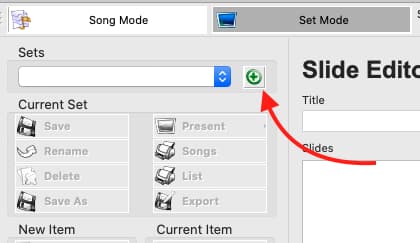
Step 2 - Present the Set
- Launch OpenSong
- Click “Set Mode” > “Present” > “Dual Screen” (or press Command + F2).
Audio Visual (AV) Hardware Setup #
The following hardware needs to be turned on and setup at the beginning of the service:
Audio Setup #
The audio setup includes the soundboard, house speakers and stage monitors, and the microphones. These are the setup tasks.
Soundboard Powering Up #
Step 1 - Turn on soundboard and dbx DriveRack PA
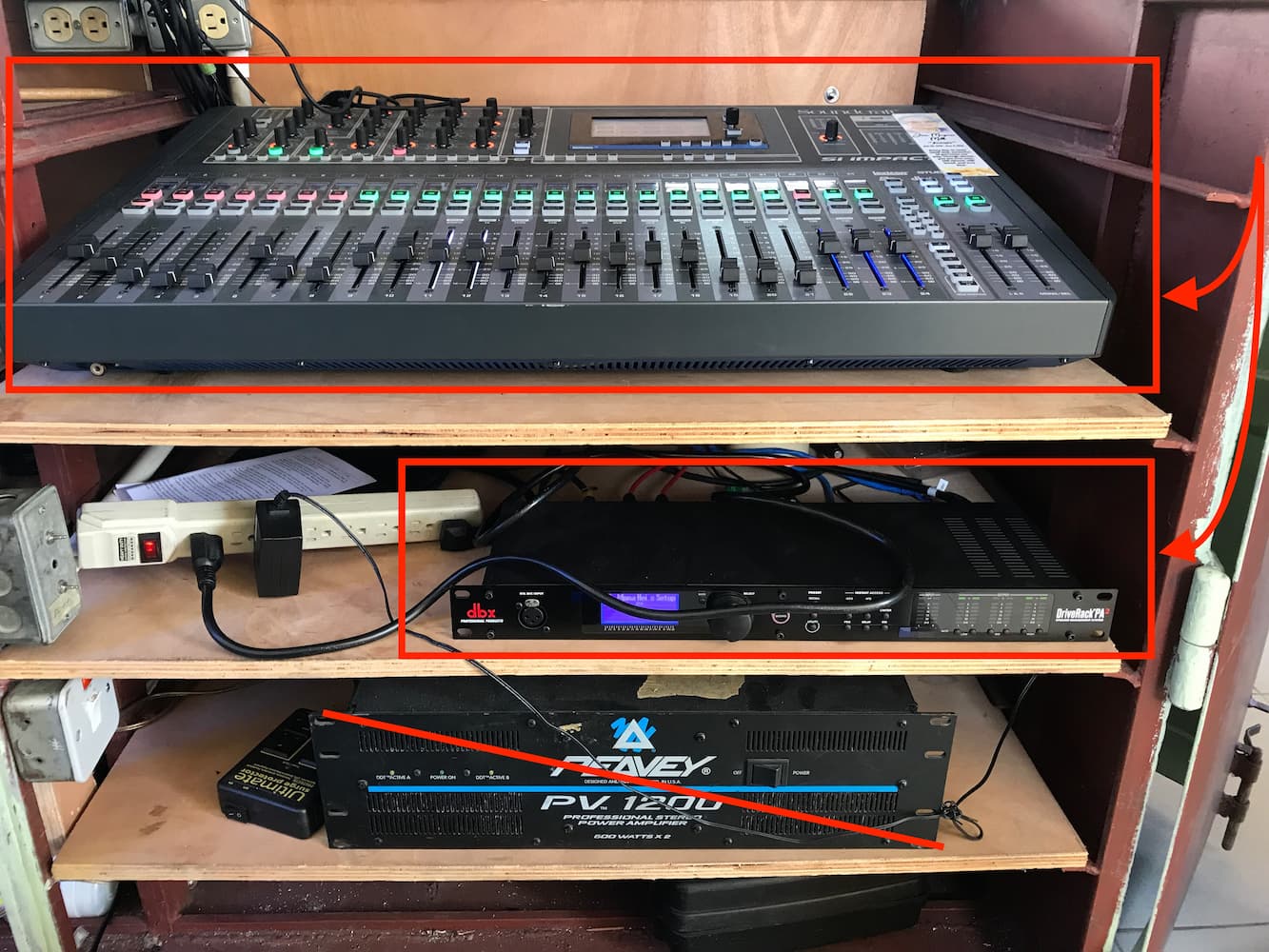
Note: We no longer use the Peavy amp, DON’T TURN IT ON
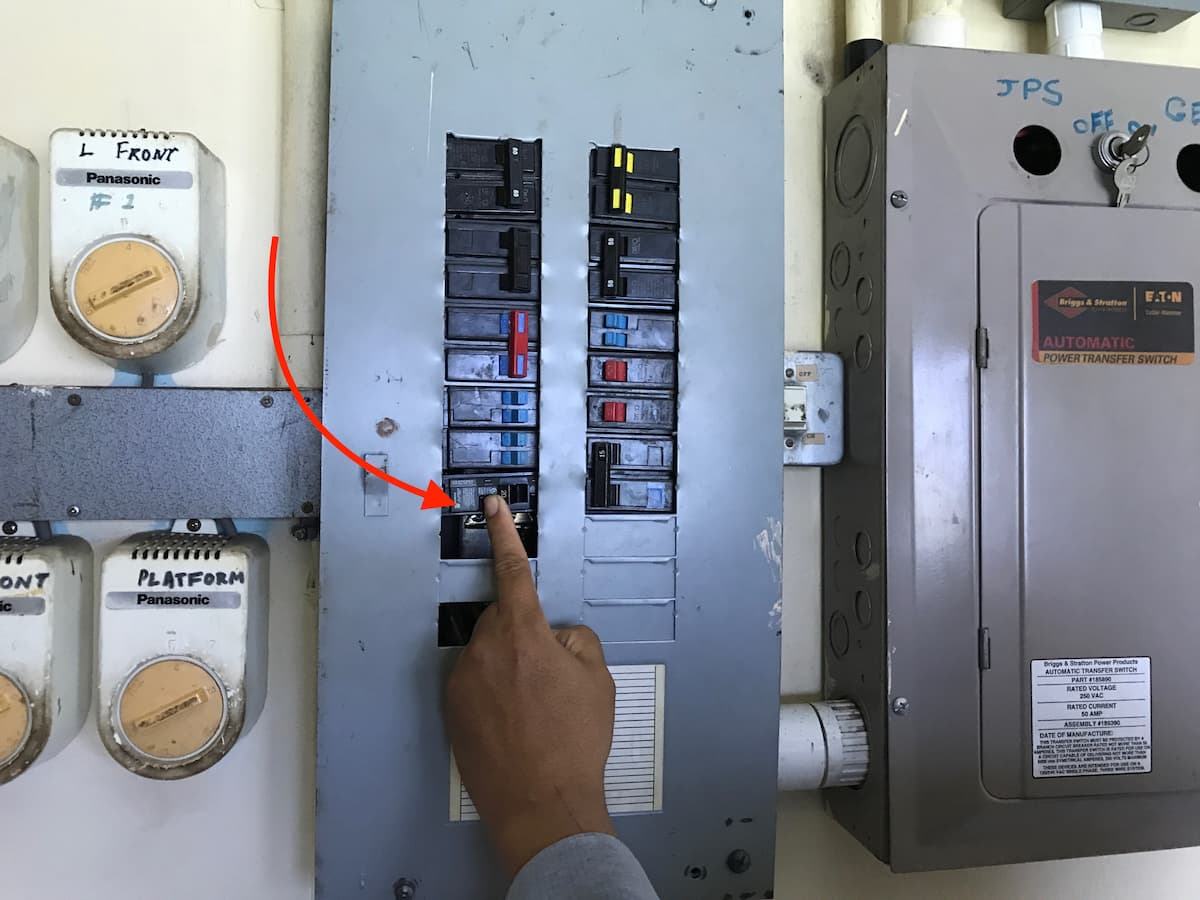
Step 2 - Power up speakers
The speakers are powered on using the power panel, this is located in the small room to the left of the platform when facing the congregation.
Setting up Microphones #
Step 1 - Install Batteries
Install batteries in the microphones. Only use strong batteries (kept in the box). We keep “strong” batteries (1.4V or higher) in the battery box and “weak” batteries (less than 1.4V) in the battery bag.
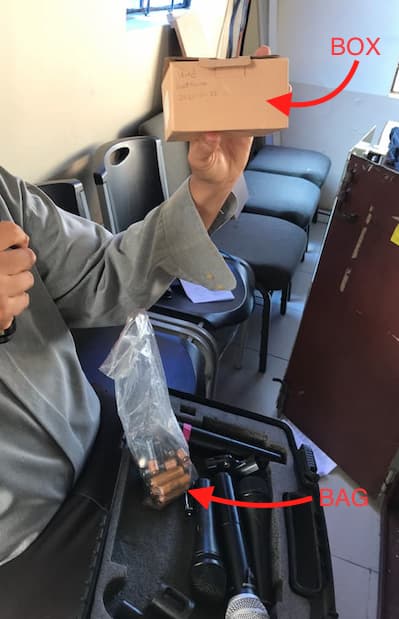
Put batteries in mics (from box)
Step 2 - Sanitise the mics
Wipe down the mics with sanitary wipes
Step 3 - Test the mics
Ensure the mics are working by testing them
Visual Setup - Cameras/Phones and the Projector #
We use phones and tripods as cameras
Setting up the Cameras #
Setup the device using VDO.ninja as a camera sources.
The steps to do this can be found on our document on adding a phone as a camera source
Adding the Cameras to OBS #
The steps to do this can be found on our document on adding a remote OBS camera source.
The Desktop Computer #
How to Setup the Desktop Computer #
- Turn it on
- Unpack and setup the monitor
- Connect the cables
- Unpack and setup the keyboard and mouse
- Take out the keyboard/mouse rest-board
How to Pack Up the Desktop #
Packing up is basically doing the setup in reverse. We’ve documented this in detail at How to Pack Up The Desktop.