OBS management #
Open Broadcast Studio (OBS) is used to provide a virtual “broadcast” camera within Zoom. The virtual camera presents screens that provide information about happenings throughout the service.
Prepare OBS #
Before the service, setup the OBS screens. You can download the MHC Service Scenes and the CrispCam profile from the MHC Tech Team OBS Resources Folder (Request access from the Tech Team)
There are two main screens: 1. The projector view 2. The thank you/closing screen
To use OBS:
- Launch OBS on the OBS operator computer
- Ensure that OBS is set to Studio mode and the CrispCam profile (get this from the Tech Team)
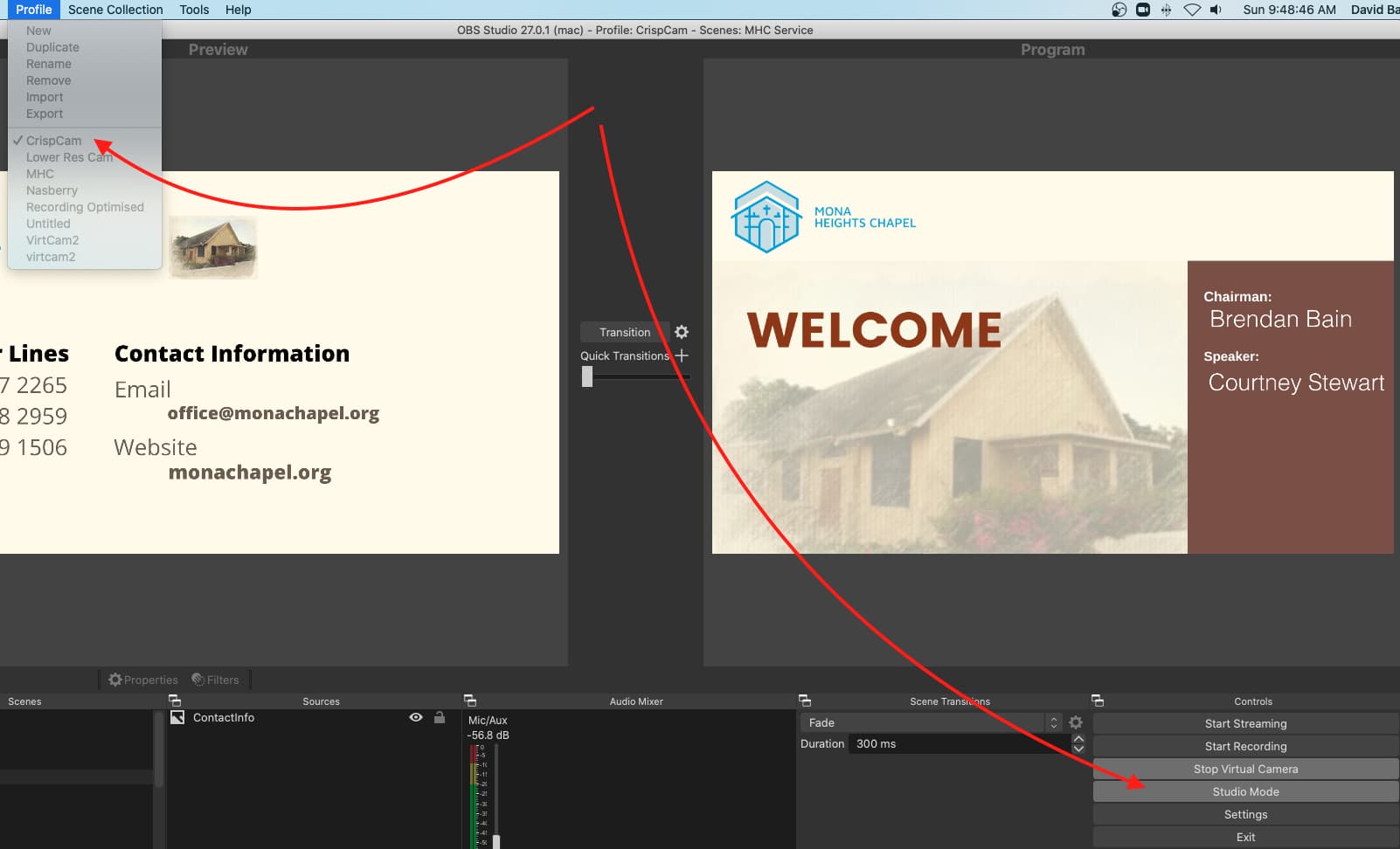
- Select the ProWelcome Scene and add the Speaker and Chairperson for the dayo
- Transition to the Welcome Scene
- Start the Virtual Camera
Show OBS in Zoom #
- Log into Zoom
- Set Camera to OBS Virtual Camera
- Turn on Video
Switch Scenes in OBS #
The most commonly used scenes are — the Welcome Scene, The Breaking of Bread Scene and the Giving Scene.
- Use OBS to select and transition scenes during the service.
- The general order of scenes is:
Projector,Closing Notice - Occasionally we use other scenes