Live Streaming #
The Live Stream is sent from Zoom to YouTube. It requires that the YouTube user configure the stream and the Zoom Host start the stream and send it to YouTube.
Configuring the Stream #
The stream must be configured on YouTube and on the Website.
Configure stream on YouTube #
Each week the YouTube stream must be configured by the Mona YouTube user, here are the steps:
-
Log in as the Mona YouTube user and go to studio.youtube.com.
-
Click the
Go Livebutton (see image below).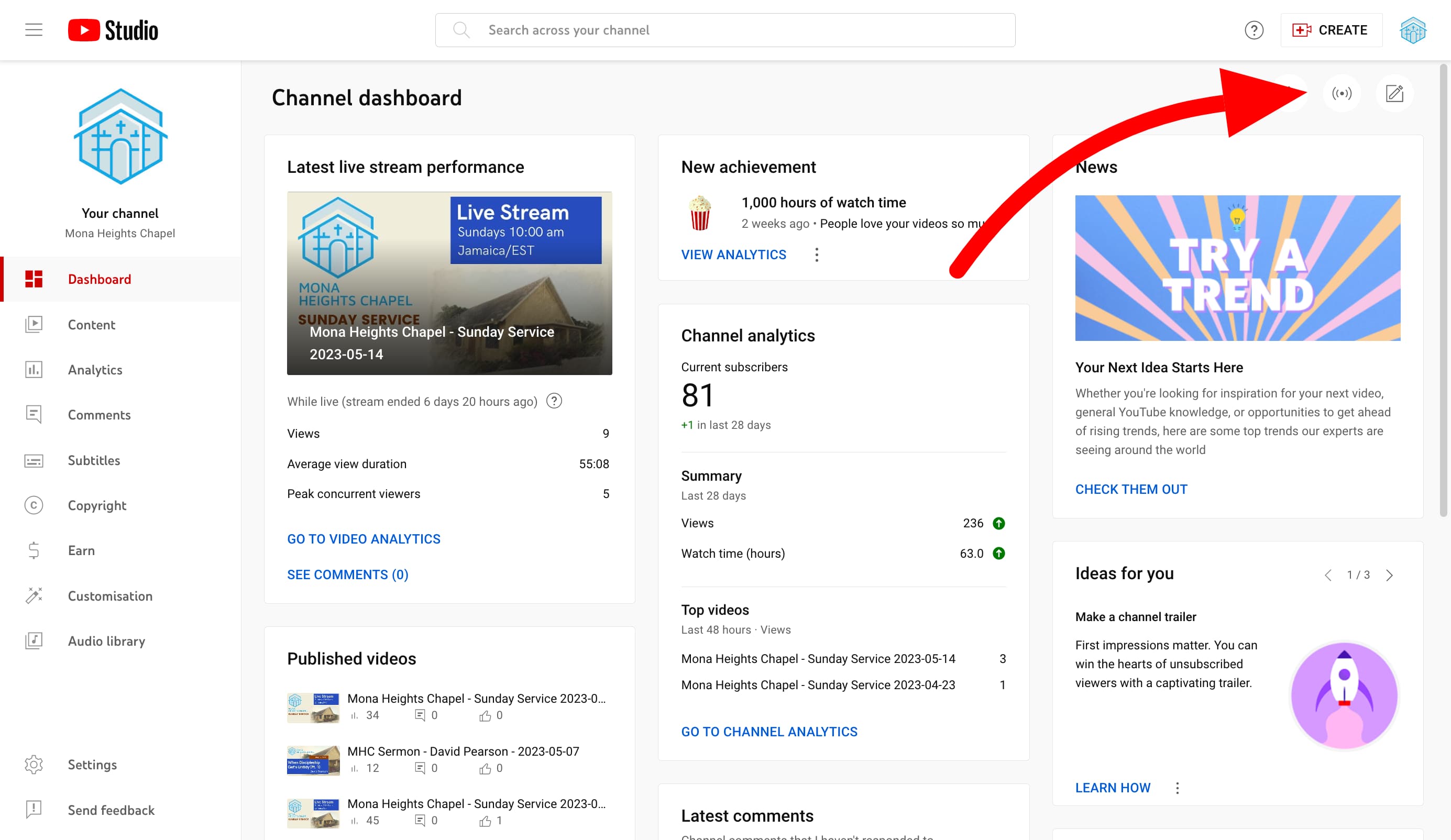
-
Click “Edit” (update the date )
Note: Unless you actively change it, the stream key and stream URL are always the same. These settings have been configured in Zoom for the current Sunday service and should “just work”. If a new meeting is configured in Zoom it will be necessary to configure the stream key and stream URL settings.
Video Demo #
The video below shows the steps involved:
Configure stream in Website #
The Sunday morning stream is made available via the website by setting the stream’s unique ID in the website.
For example…
the address https://youtu.be/pAiGxJRH-Dc has the unique id pAiGxJRH-Dc and
the address https://youtu.be/Qf8nbxdWrpw has the unique id Qf8nbxdWrpw
- Log in to the Website backend
- From the Collections side menu, click on
StreamsthenSunday Service - Replace the current
Stream IDwith the unique id of the from the step above.
Video demo #
The video below shows the steps involved:
Starting the Stream #
Start stream in Zoom #
Once the service has begun, start the stream in Zoom.
- While in Zoom, in the host controls, click the "More" button.
- Choose Live on Custom Live Stream Service.
Live stream settings in Zoom
If this is a newly configured meeting, a Zoom administrator may need to add the stream key and stream URL (this is done in the Zoom account, not within the Zoom app).
Custom Live stream settings are generally as follows:
Stream key: (copy from youtube)
Stream URL: (copy from youtube)
Live Stream Page URL: https://www.monachapel.org
The stream will automatically begin in Youtube
Video Demo #
The Go Live Process
Wrapping up the Stream #
Stop stream in Zoom #
Once the service is complete Stop the stream
Stop stream in Youtube #
- The stream will automatically stop in Youtube
- Take a screenshot of the stats for the day and share with Mona Tech Team WhatsApp Group.
The screenshot helps us to compare performance of the live stream over time.